
Updating user roles
If a user's role needs to be changed, the Customer Admin is responsible for making these changes as follows:
- Go to the Account Settings tab
- Click on User Accounts
- Locate the user you would like to update
- Click on their user name to edit
- Select the new role
- Click Save
🔎 *Please note, if you are creating an API credential account, please contact support to designate these as a "system account" to ensure they are not automatically deactivated if unused for 90 days.
Manually removing user access
If a user no longer needs to access the 7bridges software, the Customer Admin is responsible for disabling their account as follows:
- Go to the Account Settings tab
- Click on User Accounts
- Locate the user you would like to update
- Click on their user name to edit, scroll to the bottom of the page:
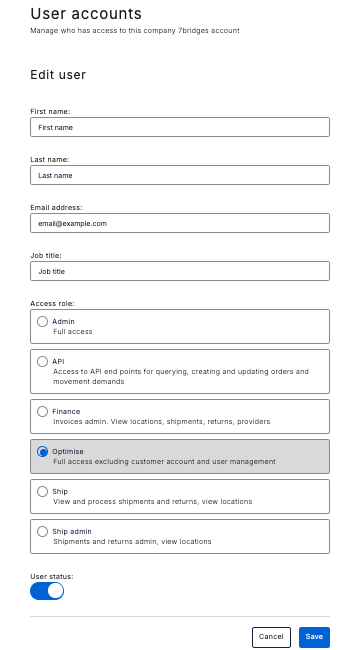
- Toggle the user ON status
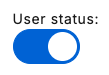 to OFF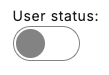
- Click Save
Reinstating user access
If a user did not log in for 90 days (or more), they will be automatically disabled from the software (excluding the customer API role). A Customer Admin user is able to reinstate the users access as follows:
- Go to the Account Settings tab
- Click on User Accounts
- Locate the user you would like to update
- Click on their user name to edit, scroll to the bottom of the page:
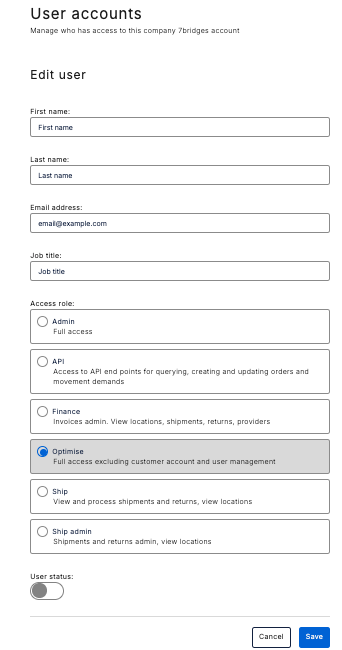
- Toggle the user OFF status
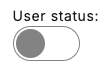 to ON
to ON 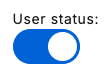
- Click Save
📣 Please also refer to the articles A guide for customers to obtain API credentials and Setting up user accounts.