
Invoice details
The invoice is split into distinct sections as follows:
Header info
This includes the invoice number, status, and the Download and Actions* buttons (only visible to approved users): 
*Actions include mark as ready to pay, void, un-void, and link/un-link a replacement invoice.
Basic info
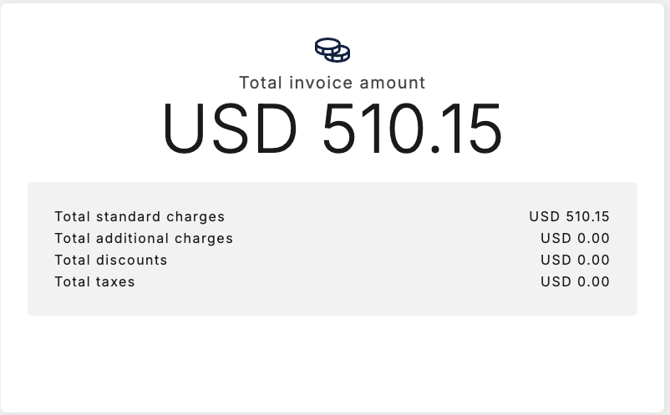
This section consists of details specific to the invoice, e.g. invoice date, provider, account etc., as well as the invoice amount split into specific categories.
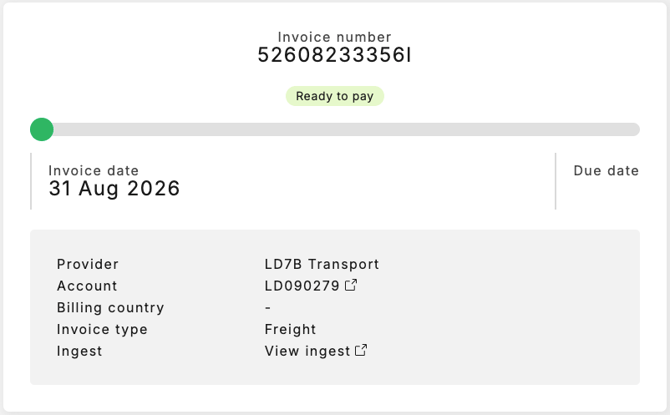
🔎 Note: The Account link  will open the details in the Providers section, and the View ingest link
  will open the Data manager ingest details, including how the invoice was received into the software and a copy of the original invoice received.
Audit spend
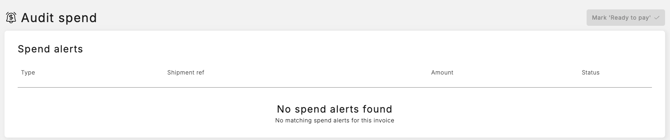
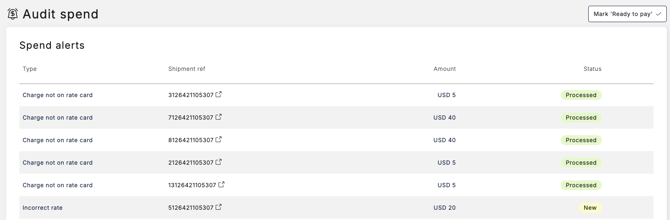
This section displays, where applicable, any spend alerts and their status, as well as any resolved disputes. Below are some examples using demo data:
1. No spend alerts:
2. NEW spend alerts, pending dispute:
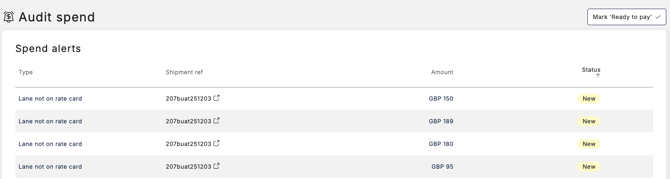
🔎 Note: Clicking on any spend alert row will take you to the Spend alert detail page.
3. PROCESSED spend alerts and dispute status:
If a spend alert has been disputed, an additional section with the type of dispute and the current dispute status will also be displayed, e.g. Breach disputes and/or Leakage disputes:
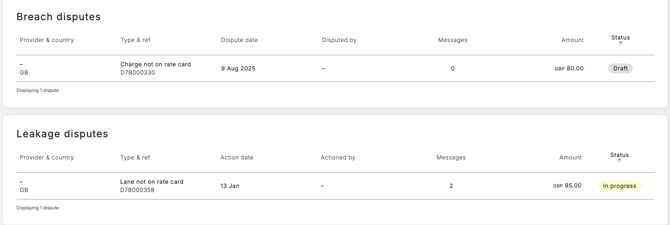
Example of a Resolved status dispute:

🔎 Note: Clicking on the dispute row will open the dispute details page with messages to and from the dispute contact.
Shipments
The Shipments section will display any shipments detailed on the invoice. If any shipments are linked to a dispute, the status will also be displayed.
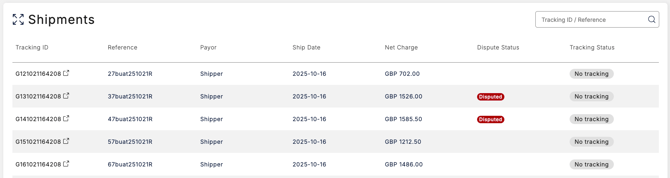
🔎 Note: Clicking on the shipment row will open the shipment details page.
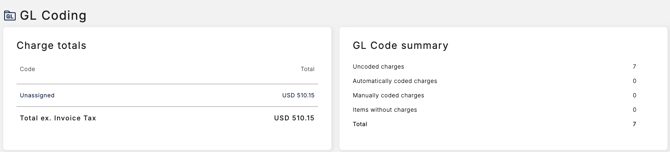
GL Coding
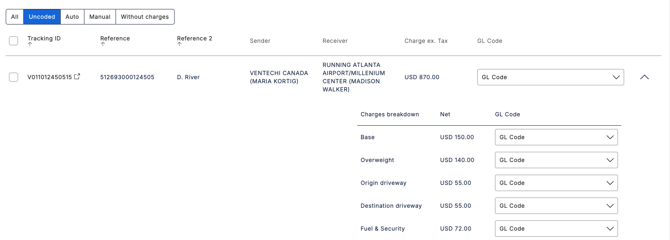
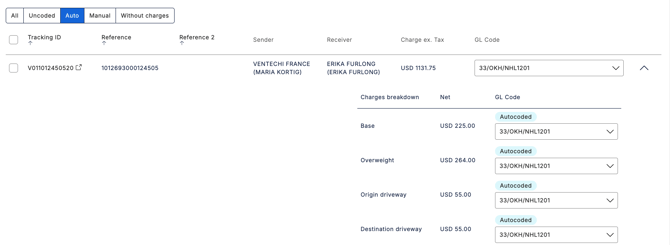
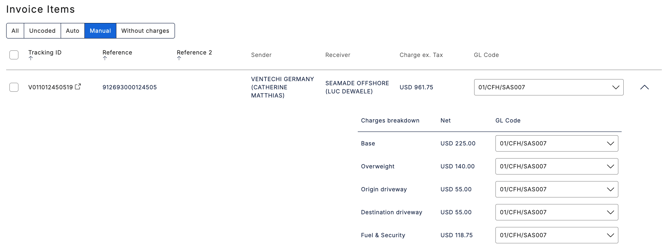
This section displays the GL Coding and a breakdown of the invoice item charges, including GL codes where used.
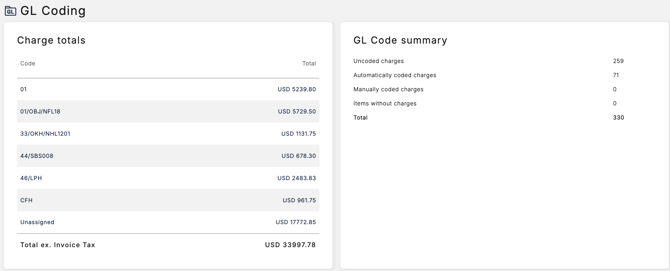
🔎 Note: Please refer to the GL Coding articles for more information.
If GL Coding is not used, all charges will display with the code "unassigned".
The invoice items section allows you to expand the invoice to view all individual charges:
Collapsed view:



Expanded view:
Audit status history
The Audit status history section is not visible to all customers. It is primarily used to capture who changed an invoice status and when the change was made.
