
The spend alert detail page allows a user to view all key attributes related to a spend alert in one place, including summary, invoice, shipment and any raised disputes.
Any new spend alerts can be reviewed in detail, prior to raising the dispute. This allows for notes to be added and the spend alert to be disputed or archived, if it is not needed to be raised with the provider.
Any credits related to a resolved dispute will also be visible in the spend alert detail page.
Contents
Accessing the spend alerts detail page
Understanding the spend alerts detail page
Creating a dispute from the spend alerts detail page
Removing a spend alert from a draft dispute
Archiving from the spend alerts detail page
Un-archiving from the spend alerts detail page
Accessing the spend alerts detail page
The spend alerts detailed page can be accessed from multiple places, including:
1. Audit spend section > Process spend alerts
Click on any row to open the spend alert detail page:
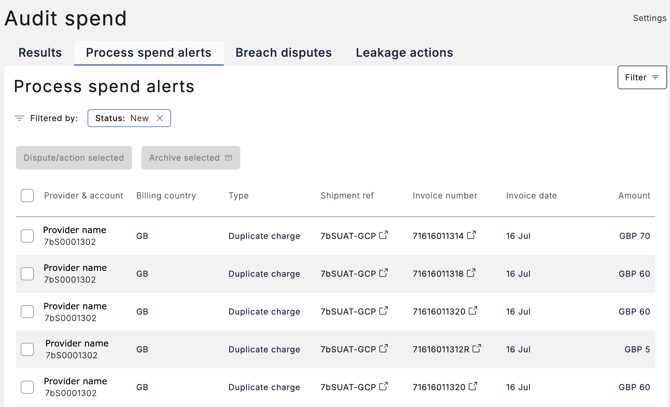
2. Audit spend section > in progress Dispute (breach or leakage action) > Process spend alerts section
Click on any row to open the spend alert detail page: 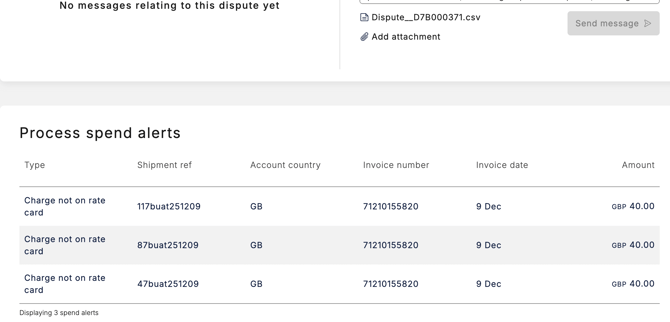
3. Shipment > Spend insights section
Click on any row to open the spend alert detail page: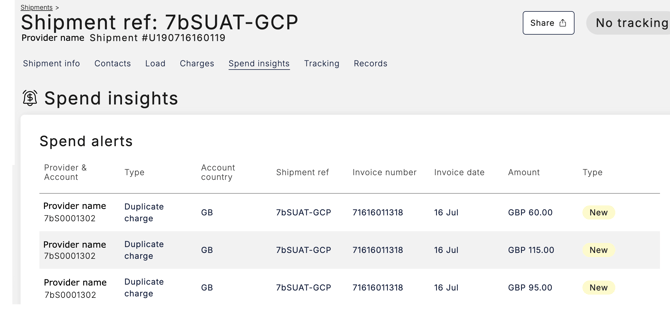
4. Invoice > Spend alerts section
-
- Click on any row to open the spend alert detail page:
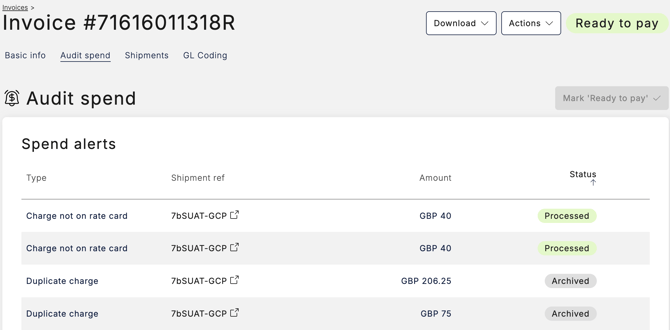
- Click on any row to open the spend alert detail page:
Understanding the spend alerts detail page
The spend alert detail page is split into the following sections:
- Header - includes which sections are available
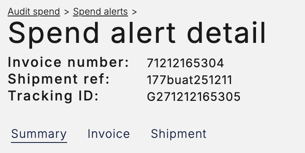
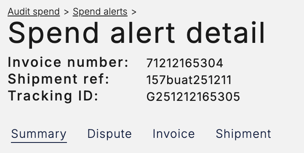
- Different buttons may be visible, depending on the spend alert status as follows:
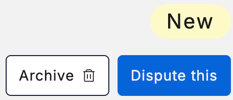
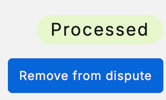
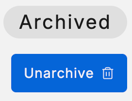
- Different buttons may be visible, depending on the spend alert status as follows:
- Summary - this section includes a breakdown of:
- Provider, account, type of spend alert and value
- Key dates e.g. spend alert flagged date, invoice and shipment date (example data below)
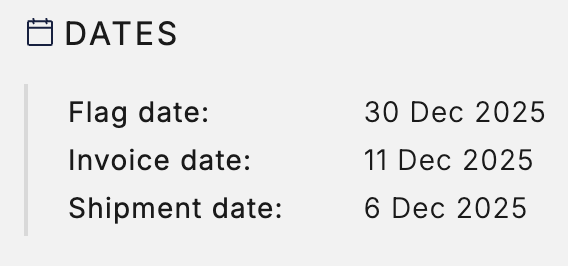
- Additional info (example data below)
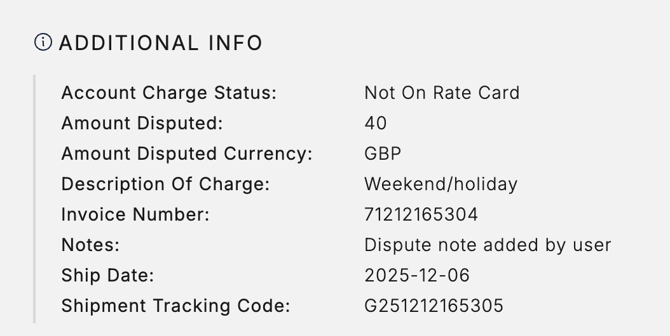
- It is possible to
 at any point and this will be displayed in the additional info section above: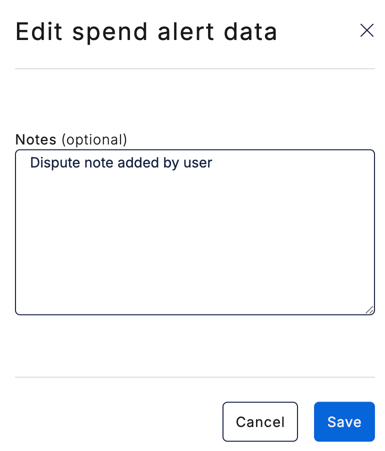
- Dispute (this section is only visible if a dispute has been created)
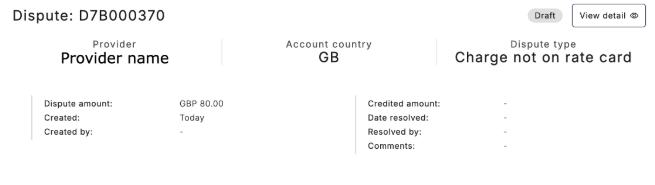
- The "view detail" button allows the user to switch to the dispute OR use the right-mouse button to open the link in a new tab/window.
- Invoice section (example test data only)

- The "view detail" button allows the user to switch to the invoice view OR use the right-mouse button to open the link in a new tab/window.
- Shipment section (example test data only)
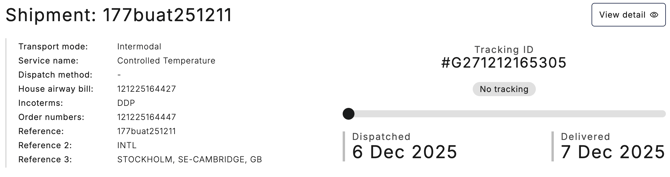
- The "view detail" button allows the user to switch to the shipment view OR use the right-mouse button to open the link in a new tab/window.
Creating a dispute from the spend alerts detail page
A spend alert can be changed into a new single dispute in the spend alerts detail page as follows:
- Locate the New spend alert that needs to be disputed
- Open the spend alert detail page

- Click on the
 button
 - The dispute will now be created.
- Note, the status has changed and the new dispute section is visible

- To view and send the newly created dispute, click on the
 button in the dispute section: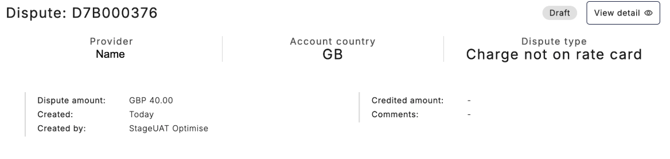
- Note, the status has changed and the new dispute section is visible
🔎 Creating breach disputes and leakage actions - automatically and manually are not impacted by this additional new feature.
Removing a spend alert from a draft dispute
It is possible to delete or update a dispute from the spend alerts detail page, providing the dispute is still in the  status. To delete or update the dispute (the software will do this automatically* depending on the number of related spend alerts disputed).
-
Locate the spend alert that needs to be removed from the dispute.
- Open the spend alert detail page.
- Click on the

- The dispute section will be removed from the spend alert detail page.
- The dispute will either be deleted or updated*.
🔎 *A draft dispute will be deleted if there is only 1 spend alert related to the dispute. A draft dispute will be updated (total value and csv) if there are multiple spend alerts on the 1 dispute.
Archiving from the spend alerts detail page
A spend alert can be archived in the spend alerts detail page as follows:
- Locate the New spend alert that needs archiving
- Open the spend alert detail page

- Click on the
 button
 - Confirm you would like to archive:
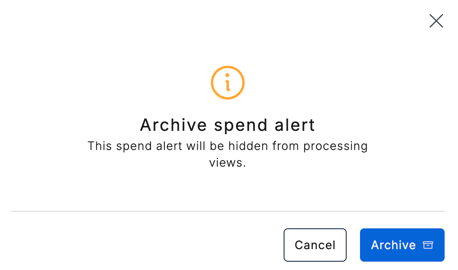
- The status will be updated to Archived

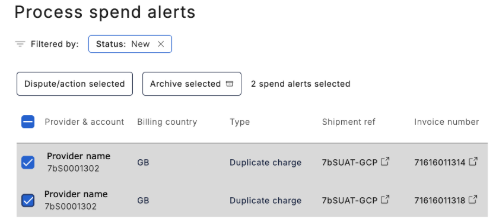
🗣️ New spend alerts can still be archived in bulk in the Process spend alerts section:
Un-archiving from the spend alerts detail page
An archived spend alert (archived from the spend alerts detail page or archived in bulk) can be un-archived as follows:
- Locate the archived spend alert
- Options include, from the Process spend alerts page, Shipment or Invoice view
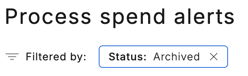
- Options include, from the Process spend alerts page, Shipment or Invoice view
- Open the spend alerts detail page
- Click on the Unarchive button:
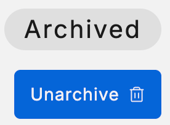
- Confirm you would like to unarchive:
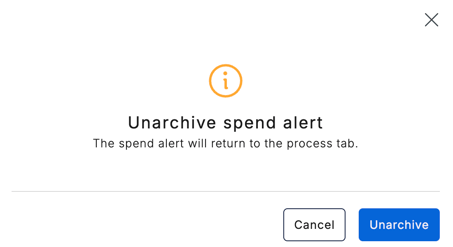
- The status will be updated to New
