
Overview
Providers are able to send different file types e.g. invoices and shipments to the software, primarily by Email or SFTP-Push. Multiple email and/or SFTP-push connections can be added for the same provider.
-
-
Connections can be linked to AI Data Extract (workflows).
-
Connections can be defined as the master source, e.g. any data received through this connection will be prioritised over the same data received by a different connection.
-
Receiving connections are managed for each provider account in the Providers section of the software:

Contents
How can I create a new email connection
How can I update an existing email connection
How can I create a new SFTP connection
How can I update an existing SFTP connection
Prioritising a connection as a 'Master Source'
Email connection
The unique email address for each provider (and connection) will be generated automatically by the software.
How can I create a new email connection
-
Open the provider account that requires the new connection.
- Scroll down to the Receiving connections section.
- Click on the
 button
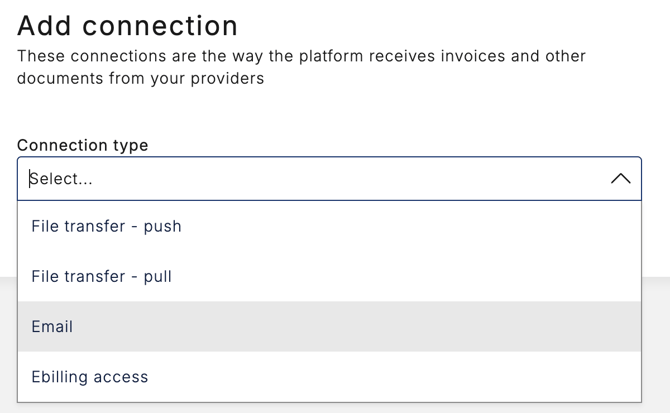
 - Select the Email connection type:
- Complete the applicable sections
- Please refer to the relevant sections in this article for more information on 'Is Master Source' and 'Workflow' options.
- Click Save
- The new generated email address will now be displayed:
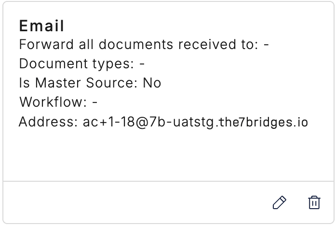
🔎 Please note, the new connection email address will only be generated after the Save button has been selected, therefore "the email address for this connection is: " value will be blank for new email connections: 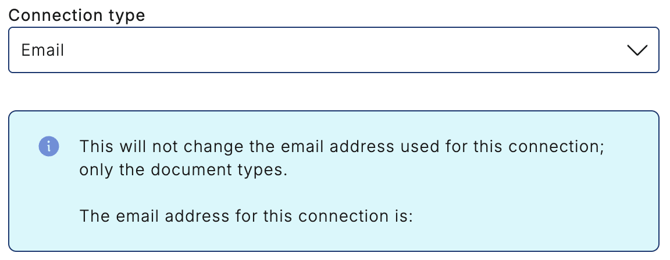
How can I update an existing email connection
-
Open the provider account that requires an update.
- Scroll down to the Receiving connections section.
- Locate the connection you'd like to update and click the pencil icon in the bottom right-hand corner:

- Please note, the email address will be displayed:
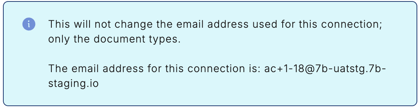
- Please note, the email address will be displayed:
- Make any applicable updates
- Please refer to the relevant sections in this article for more information on 'Is Master Source' and 'Workflow' options.
- Click Save
🔎 To delete a connection completely, click on the bin icon  instead of the pencil, in step 3.
SFTP - Push connection
The unique file transfer directory, host name, user name and password will be automatically generated by the software.
🔎 The password is only visible in the Add and Edit connection view by authorised personnel with an Admin or Optimise role.
How can I create a new SFTP connection
-
Open the provider account that requires the new connection.
- Scroll down to the Receiving connections section.
- Click on the button
- Select the File transfer - push connection type:
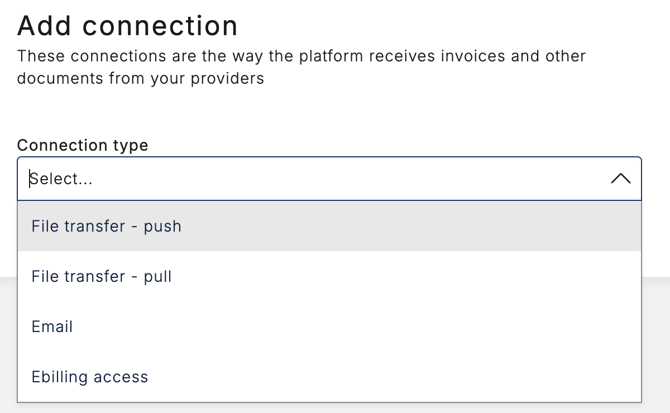
- Complete all applicable fields
- Click Save
- The new connection will be displayed:
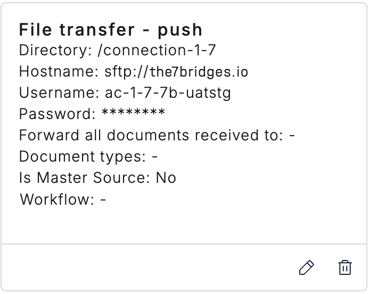
How can I update an existing SFTP connection
-
Open the provider account that requires an update (or to view the password).
- Scroll down to the Receiving connections section.
- Locate the connection you'd like to update and click the pencil icon in the bottom right-hand corner:
- The following message will be displayed:
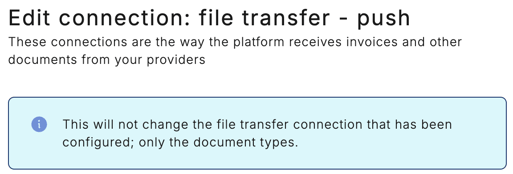
- The following message will be displayed:
- Make any applicable updates
- Please refer to the relevant sections in this article for more information on 'Is Master Source' and 'Workflow' options.
- Click Save
🔎 To delete a connection completely, click on the bin icon instead of the pencil, in step 3.
Assigning a workflow
A published AI data extraction PDF or structured data workflow can be assigned to a connection, this may be assigned during your onboarding process or after discussions with your Customer Success Manager or contact support.
Simply select the applicable name from the available list (examples only, not real names)
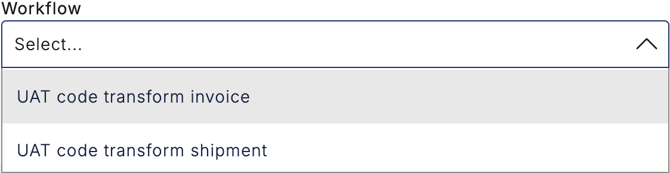
⚠️ It is very important that the correct workflow name is selected or the data may not be able to be extracted correctly.
⚠️ Providers can send to a connection without a workflow assigned, however the ingestion may fail until a workflow can be assigned.
⚠️ If you assign a workflow by accident, please contact support to remove it. You must provide the connection type and ID e.g. email address or file-transfer user name.
Prioritising a connection as a 'Master Source'
The new master source feature allows a user to designate a single connection point as the primary master source. Any data on records sent to this connection point will take priority over data from records sent to another connection point vs latest data "wins".
Example 1:
-
- 25 DEC, a customer specific property (e.g. lane_id) is received for a tracking number sent to a connection point with the master source feature, for a planned shipment.
- 31 DEC, an Invoice is received for the same shipment tracking number, but the customer specific property (e.g. lane_id) is omitted from the invoice.
- Outcome, the shipment property is displayed on the shipment record.
Example 2:
-
- 25 DEC, a customer specific property (e.g. lane_id) is received for a tracking number sent to a connection point without the master source feature, for a planned shipment.
- 31 DEC, an Invoice is received for the same shipment tracking number, but the customer specific property (e.g. lane_id) is omitted from the invoice.
- Outcome, the shipment property is NOT displayed on the shipment record.
Follow these steps to designate the connection point as the master source:
-
- Locate the connection that will be the master source.
- Click the pencil icon to edit.
- Check the Is Master Source field;

- Click Save
- The master source value will be displayed on all connection points as Yes or No:
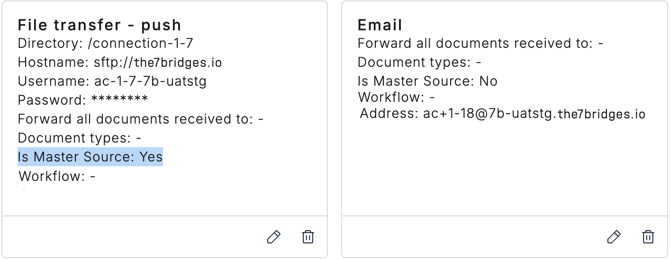
⚠️ Only 1 connection can be the Master Source, it is recommended to remove an existing Is Master Source field before selecting a new connection as the Master Source.