
The locations section is split into two types of addresses, Fulfilment locations and Address book. This page explains how to create an Address book address, which is primarily used as a repeat delivery address.
⚠️ Fulfilment rules require an exact address match. If a selected fulfilment location or Address book address is changed within the shipment, either manually or via API, including the contact name, the rule will not be applied.
- Go to the "Locations" section:

- The results page will display any saved fulfilment locations.
- Switch to the Address book view and search to check whether the address is already saved:

- In the top right-hand corner, approved users will see the
 button as shown below:
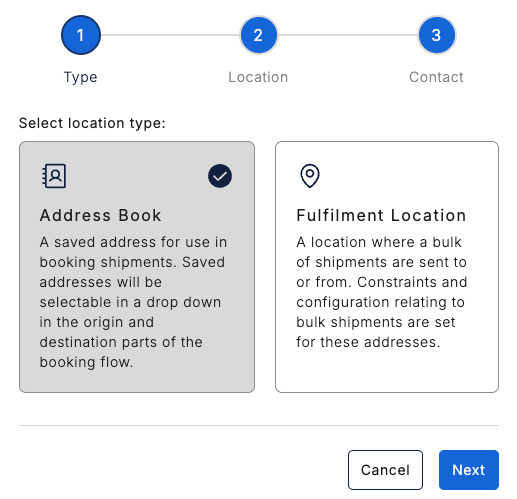
 - Select the location type (this article focuses on Address book), then click Next:
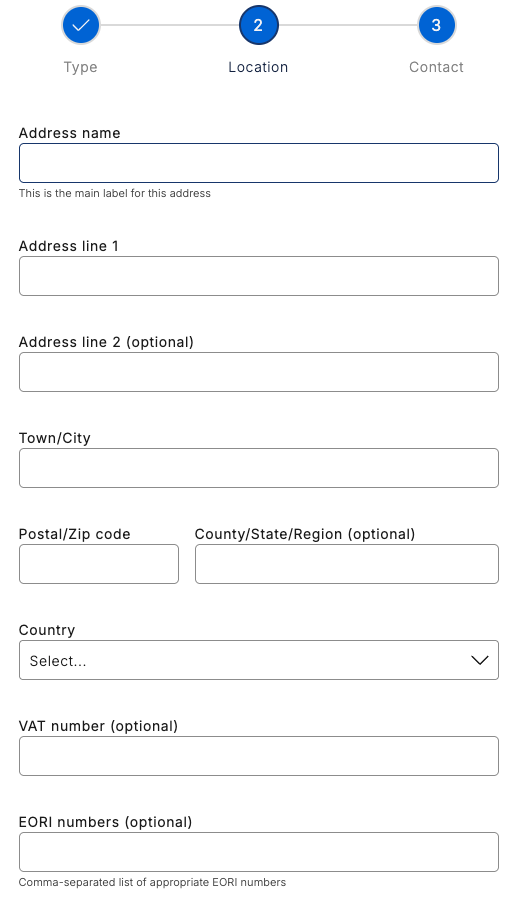
- The next page is for the address details. Enter all applicable fields, then click Next:
- If you have both a Company name and Contact name, enter the contact in the Address name field. The Company name is entered on the next page:
- If any of the mandatory address fields are missing, the following error message will be displayed and the applicable fields will be highlighted:

- If you have both a Company name and Contact name, enter the contact in the Address name field. The Company name is entered on the next page:
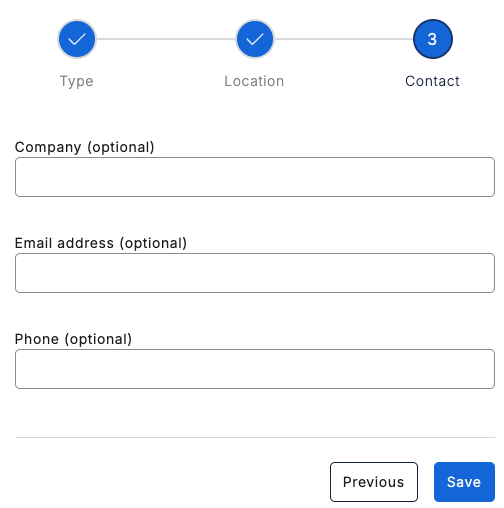
- Enter the optional Company, email address and phone details, then click Save.
⚠️ Address book addresses cannot be updated or removed once saved.