
Invoice is ready to pay
When an invoice has completed the prepay audit checks, the invoice status is updated to 'Ready to pay'. Alternatively, an approved user role can manually mark an invoice as 'Ready to pay'.
When an invoice reaches this status, two email notification options are available. These support finance teams that manage invoices via shared or individual inboxes.
1. User email notification
Managed at the user level by the user of the 7bridges software. This notification includes the invoice details (invoice number, provider name, provider account, invoice date and invoice total) and a link to view the invoice within the 7bridges platform.
2. Invoice email notification
Managed at the customer level by approved user roles, emails can be sent to shared and/or individual email addresses. This email notification includes the invoice details and an attached copy of the original received invoice.
🔎 Click here for more information How do I know an invoice is ready to pay?
Invoice notification types
There are 2 different types of invoice email notifications, both contain as standard:
- An attached copy of the original invoice e.g. pdf, excel and/or csv
- Invoice details: Number, provider name, provider account, invoice date and invoice total
1. This invoice in 7bridges is now ready to pay: This email notification is triggered when an invoice status changes to  . Below is a partial example of a "Ready to pay" email.
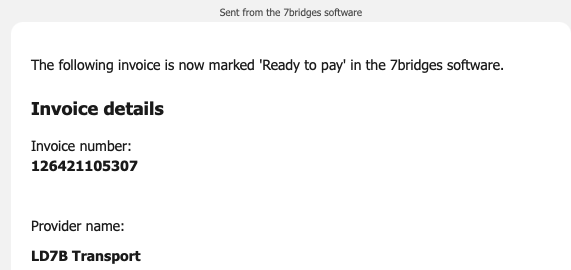
2. An invoice in 7bridges is no longer ready to pay: This notification is triggered when a "ready to pay" invoice status is changed e.g. it has been marked void. Below is a partial example of an invoice status change:
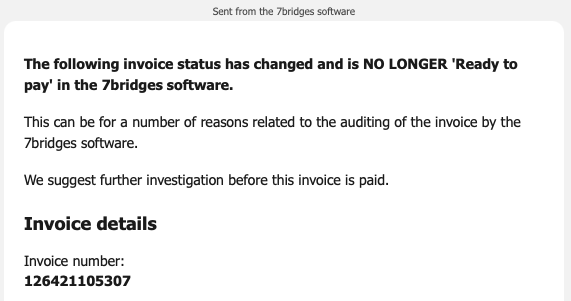
📣 Please note, any email addresses set-up for an invoice notification will receive both types above when the applicable rule is triggered.
Managing the invoice notifications
Admin, optimise and finance users have the ability to manage the customer invoice notification as follows.
- Open the Invoices section and click
 in the top right-hand corner
 - Any details already added, will be displayed. Click Edit to add or change the values:
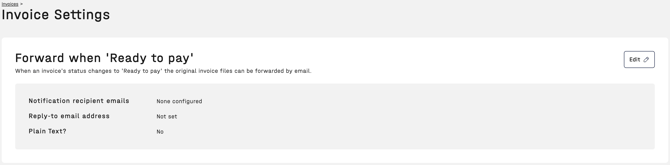
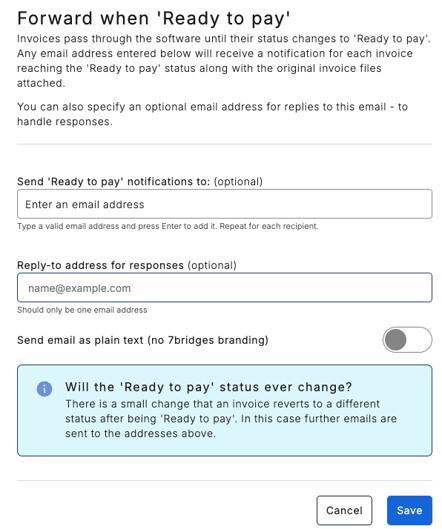
- Add 1 or more email addresses in the recipient field (shared or individual emails):
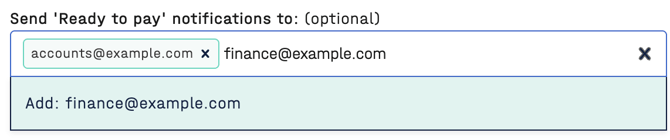
- A single email address can be removed by clicking the X after the email address or click the X on the data entry box to remove all:

- A single email address can be removed by clicking the X after the email address or click the X on the data entry box to remove all:
- Optionally, when the email is received a single "reply-to" address can be added for the user to respond to:

- The email can be received as branded or not, using the toggle:

- When all applicable details have been added (or amended), click Save
⚠️ Please note, all approved customer user roles have access to the same setting i.e. they can all add, update and remove any addresses entered by any other user. There is not currently an audit trail to capture who or when changes were made.