
Overview
Please note, this feature is only available to Automate customers and user roles Admin and Ship Admin.
Fulfilment rules automate decision-making during the shipping process. These rules may influence shipping methods, provider or account selection, and documents generated during booking.
This article explains how you can view fulfilment rules configured on your account, independently of booking a shipment. Please note, viewing fulfilment rules is for transparency only, this feature does not change which fulfilment rule is selected by a user or how shipments are booked.
BETA notice
This feature is released as BETA. Functionality and presentation may change based on feedback.
🔎 Please also refer to this article to see which fulfilment rules were applied to a shipment?
How to view configured fulfilment rules
- Open the Shipments section
- Click on the Settings link in the top-right hand corner:

- The fulfilment rules will now be visible. This is a read-only feature. It is not currently possible to create or edit fulfilment rules.
Filtering fulfilment rules
The rules can be filtered:
- Show all, enabled or disabled* status

- View all rules linked to a provider account number/s:


🗣️ Please note disabled is the current status whilst a rule is being written, in addition to when a rule has been removed.
What determines an OVERLAP?
An overlap occurs when more than one rule could apply to the same shipment based on matching conditions. This does not necessarily mean all over the OVERLAP rules will be applied to a shipment.
What does an OVERLAP mean when booking?
An OVERLAP is an informational indicator showing that more than one rule may match the same shipment conditions. This does not mean there is a problem with your booking or that multiple rules will be applied. Overlaps can exist by design and do not change booking behaviour. You can continue booking shipments as normal.
I can see a lot of OVERLAP rules, what does this mean?
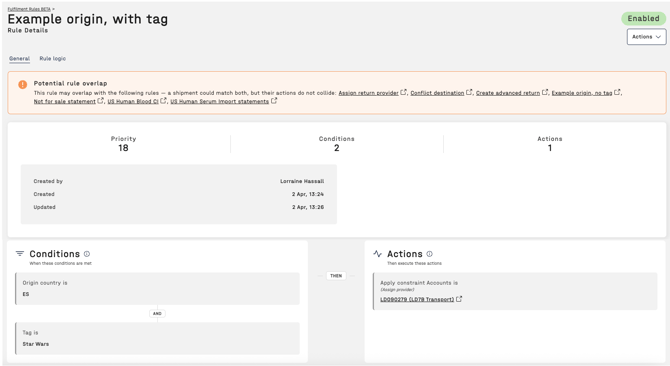
The following example displays multiple OVERLAP rules, as one of the conditions matches another rule OR a condition cannot be excluded (e.g. product rule). The action outcome does not conflict though i.e. most of the overlap rules will have a different action or the same action with the same provider.
What determines a CONFLICT?
A conflict occurs when multiple rules could apply to the same shipment and their actions contradict each other, such as selecting different provider accounts. This does not necessarily mean an issue or that they will be applied to a shipment booking, but they may if the conditions all match.
What does a CONFLICT mean when booking shipments?
A CONFLICT highlights that multiple rules could match the same shipment and that their actions contradict each other (for example, selecting different provider accounts). This does not mean that your booking will fail or that the shipment cannot be processed, however additional providers may be displayed as an unintended viable option.
This view does not indicate which rule will be applied during booking and does not change operational behaviour.
If you regularly see conflicts and believe the outcomes do not align with expected booking behaviour, please contact your Customer Success Manager or Customer Support to review the rule configuration.
I can see a lot of CONFLICT rules, what does this mean?
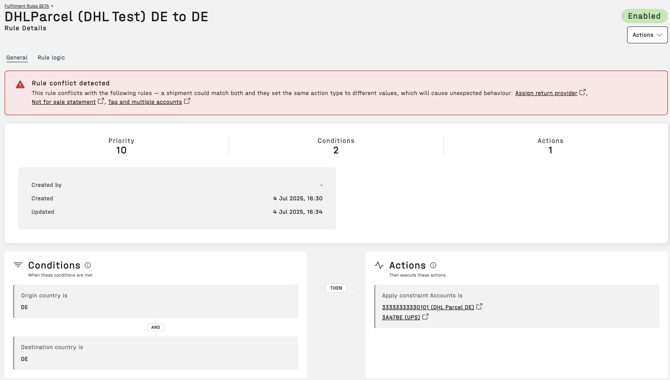
The following example displays multiple CONFLICT rules, as one of the conditions matches another rule OR a condition cannot be excluded (e.g. product rule). The action outcome conflicts with this rule e.g. different provider accounts.
🔎 If you would like to create fulfilment rules or discuss options/existing rules, please speak to your Customer Success manager or contact Customer Support