
Overview
The charge details page displays key attributes related to a charge, providing full visibility on charges received from providers. The details page can be accessed from clicking on the related charge in the Data manager > charges table or from clicking on the invoice charge in the Shipment > charges section.
Header
- Status - the status is currently managed as part of the onboarding process. Please refer to A guide to the Charges tab in the Data manager section for a list of available statuses
- Disable or Enable - allows approved Admin and Optimise users to disable (and enable) a charge from the audit process.
- Edit - allows approved Admin and Optimise users to change the clean charge name and/or category value.


Charges
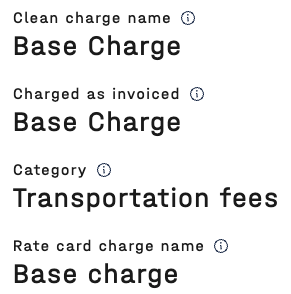
- Clean charge name - a clean version of the charge name that appears on the invoices. Please note, this name can be amended by authorised users in this page or in bulk.
- Charge as invoiced - actual charge name that appears on the invoices
- Category - an aggregated name used in reporting to cluster charges of a similar type. Standardised categories can be viewed here: What charge categories are used in 7bridges?
. Please note, this name can be amended by authorised users in this page or in bulk. - Rate card charge name - the charge name as it appears on the rate card
Provider
- Original provider - the providers name, where this charge was first received into the software.
- Original account - the providers account, where this charge was first received into the software.
- Date last seen - the latest invoice date for this charge.

Value & volume
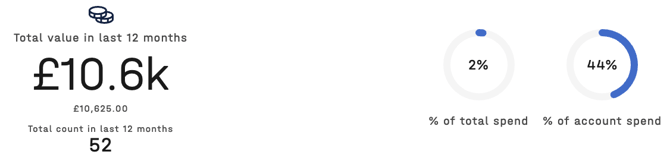
- Total value in the last 12 months
- Total count in the last 12 months
- % of total spend (across all providers and accounts)
- % of account spend
Related links
- Link to most recent shipments, with the charge
- Link to most recent invoices, with the charge
How can I disable a charge?
- Open the charge details page
- Click on the
 button in the top right-hand corner
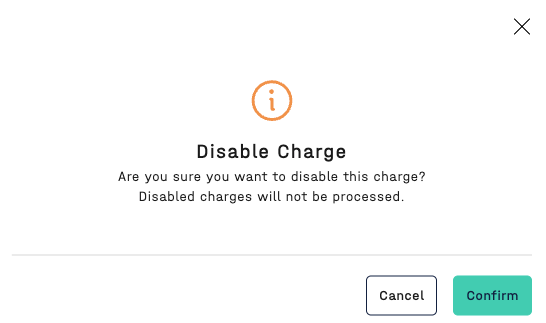
 - Confirm you would like to disable the charge:
- The charge status will be displayed as

🔎 Please refer to the article What audit checks does the software make for details on which audit checks are skipped, for a disabled charge.
How can I enable a charge?
- Open the charge details page
- Click on the
 button in the top right-hand corner
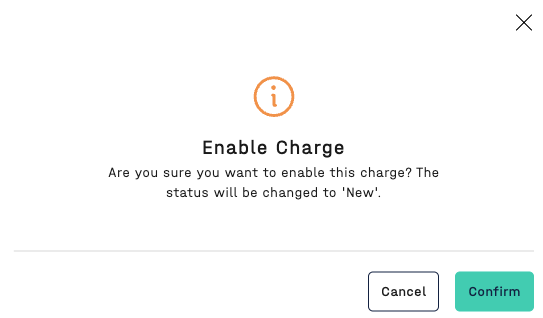
 - Confirm you would like to enable the charge:
- The charge status will now be updated to

🗣️ Please note, if a charge is enabled the status will always be updated to New.