
Introduction
New charge descriptions received from providers are automatically assigned with a clean charge name.
Customers have the flexibility to change the assigned clean charge name individually or in bulk for new or existing charges.
How to change a clean charge name (individual)
-
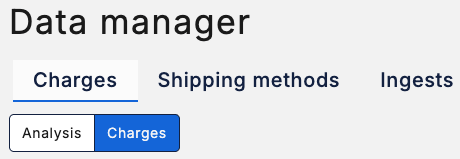
Go to the Data manager > Charges section (available for Customer Admin or Optimise roles)
- Select the Charges tab (the default view will be the Analysis charts)
- Locate the charge description you would like to update, using the top level search and/or filter (below example utilises both):
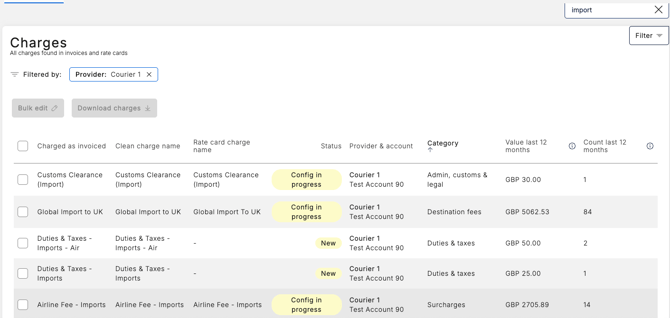
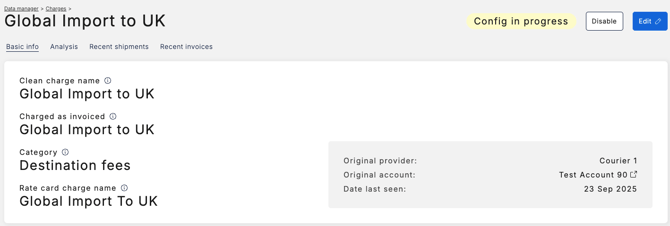
- Click on the charge name you would like to update e.g. Global Import to UK. This will open the charge details page.
- Click the Edit button in the top right-hand corner:
- Select from one of the existing clean charge names:
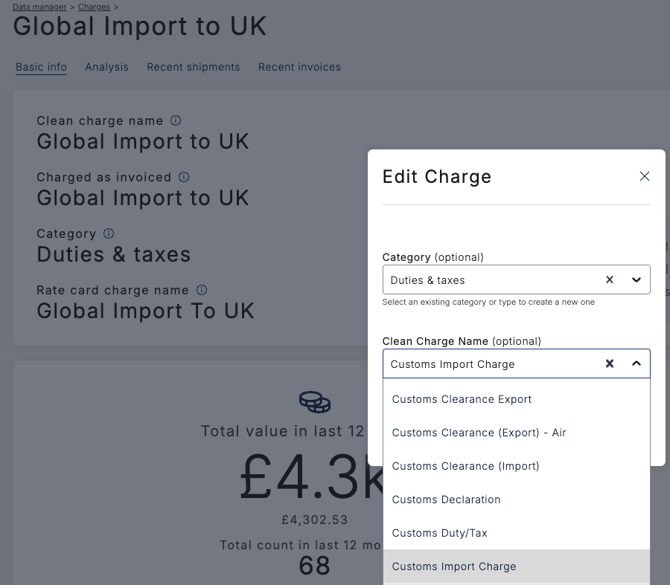
- Or start typing a new name and the option to Create the new clean charge will be displayed, click on this to select the new name:
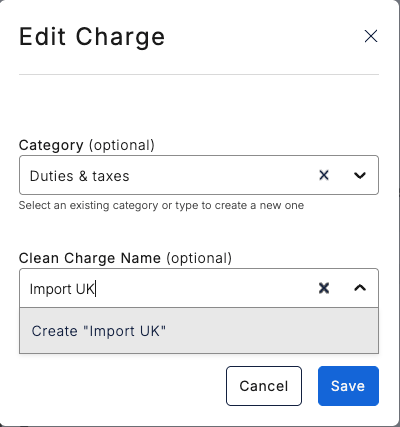
- Select from one of the existing clean charge names:
- Once selected, click Save
- The updated clean charge name will be displayed in the table.
How to change a clean charge name (bulk)
-
Go to the Data manager > Charges section (available for Customer Admin or Optimise roles)
- Select the Charges tab (the default view will be the Analysis charts)
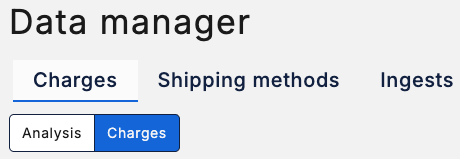
- Locate the charges you would like to update, using the top level search and/or filter
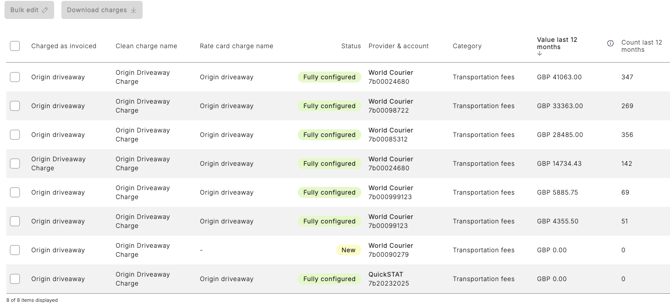
- Select the top level check box to select all the charges
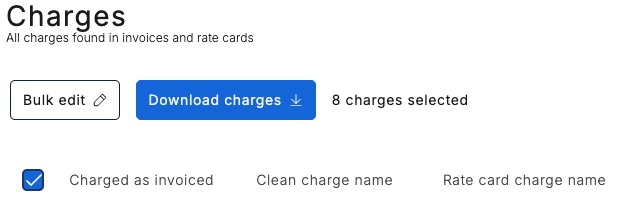
- Click the Bulk edit button
- Start typing to be prompted with existing names or the option to Create the new name will be displayed:
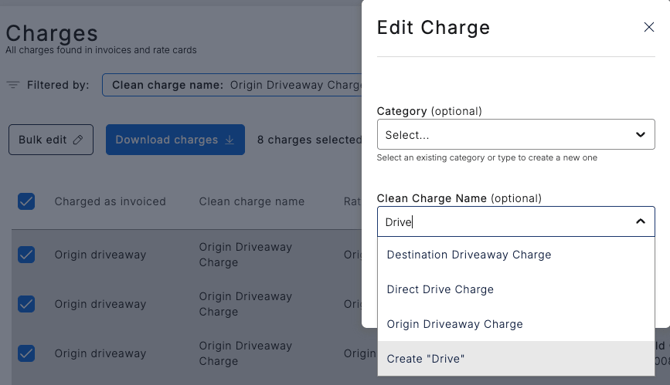
- Start typing to be prompted with existing names or the option to Create the new name will be displayed:
- Once selected, click Save
- The updated clean charge name will be displayed in the table.