
Only users with the permission role Admin or Optimise can see the Charges tab.
What do you mean by 'charges'?
The 7bridges software has a log of all the charges that appear on invoices from your Logistics Service Providers (LSPs). Each of these charges is then examined, annotated and mapped to your provider rate cards. This mapping enables the platform to audit the charges when they appear on invoices.
The Data manager > Charges section is split into 2 views: 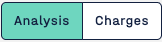
- The Analysis section displays charts to easily identify how many charges are fully configured vs. new vs. not on the rate card etc.
- The Charges section is a fully interactive charges table allowing you to see all charges received from all providers. Quick search and filters are available to reduce the results:
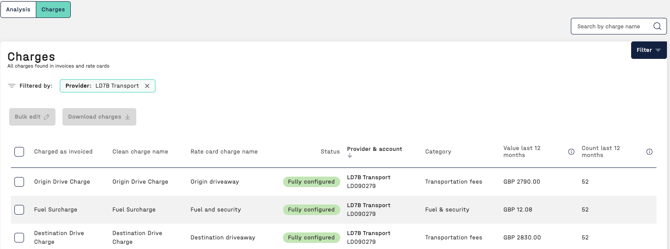
What are the definitions of the columns in the charges table?
The definitions are as follows:
Charge as invoiced - the way the charge is labelled on the invoice from the provider. Charges across invoices are matched on this field and the provider and account number.
Clean charge name - an AI translated and cleaned version for the charge as invoiced. This value can be edited individually or in bulk.
Rate card charge name - the charge name as it appears on the related rate card (if applicable)
Status - the current state of this charge in relation to Audit, see further down the page for details
Provider - the Logistics Service Provider on whose invoices this charge is found
Account - the account number on which this charge is found (Account charges are per provider account)
Category - the category for the charge, assigned by AI. This category is used in Network Analysis to simplify charge reporting. This value can be edited individually or in bulk.
Currency - the currency of the charge
Value - the sum of all occurrences of the charge across all invoices and shipments on the given account
Count - the count of all occurrences of the charge across all invoices and shipments on the given account
To illustrate the above definitions here is an example:
There is a status set for each unique charge name across a given account e.g. if you have "freight charge" found on 100 shipments across 50 invoices on account ABC and "freight charge" found on 50 shipments across 50 invoices on account DEF then you would have:
- Charge Name = Freight charge, Account = ABC, Count = 100
- Charge Name = Freight charge, Account = DEF, Count = 50
What do the charge statuses mean?
- New - this charge has not been seen on this account before. This might happen in the event the provider creates a new charge code that did not previously exist in the rate card or was not previously configured for audit.
- Needs Clarification - if either the rate card is not clear on how to audit this charge or there is missing shipment information in the 7bridges system so that the charge can not be audited this status is chosen. The provider should clarify the rate card logic or provide additional data before charges can move from this status.
- Not On Rate Card - if the charge does not appear in the rate card this status is set. Any charges with this status will generate 'charge not on rate card' spend alerts.
- Config in Progress - we have the information on how to audit the charge and the rate card is clear. Our team is in the process of converting the rate card into format that our software can understand so it can begin to check if the rate charged is correct.
- Fully Configured - the rate card has been transformed and loaded and "incorrect rate" spend alerts will be checked for this charge.
- Disabled - the customer has chosen not to audit this charge, for some reason, so it is disabled and not considered for the below spend alerts.
How are spend alerts affected by these status'?
The following 3 spend alert checks are only applicable if the charge is assigned the matching status:
Incorrect Rate
The software will only check if the correct rate has been charged for charges that are in 'Fully configured' state. This is because this status means the software has all the information needed to Audit. E.g. the rate cards are clear and configured in the 7bridges software.
Charge Not on Rate Card
Any charge with the status 'Not in rate card' will generate 'charge not on rate card' spend alerts. Any 'New' charges seen by the 7bridges software will be reviewed against the rate card and either configured fully, set to 'Not in rate card' or disabled for some reason.
Evidence Required
Any charges marked as 'Needs clarification' will generate 'evidence required' spend alerts. This is because the provider has either not provided sufficient data to Audit the charge or the rate card is unclear.
📣 The remaining audit checks are checked regardless of the charge status; What Audit checks does the software make?
Downloading the charge status data
You can download the charge table as follows, should you wish to do some analysis offline:
- Select the charges you would like to download (multi-select or all:
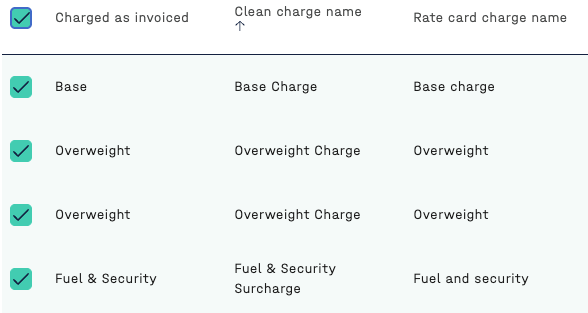
- Click to Download only the ones currently selected (20 per page if all have been selected):

- Or click Select all ## charges instead (all pages) to be able to Download all charges on subsequent pages too.
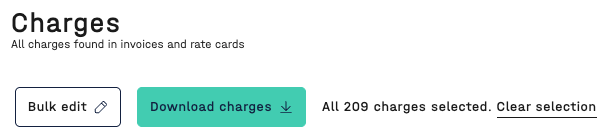
Filtering charts and the table
You can filter the charts and the table in the normal way by using the panel on the right hand side. This functionality is described in more detail here.
NOTE: Please make sure you always have a currency selected in the filters. Deselecting the currency will display wrong data in the charts and table.